Features / App walkthrough

Take a walk through the app.

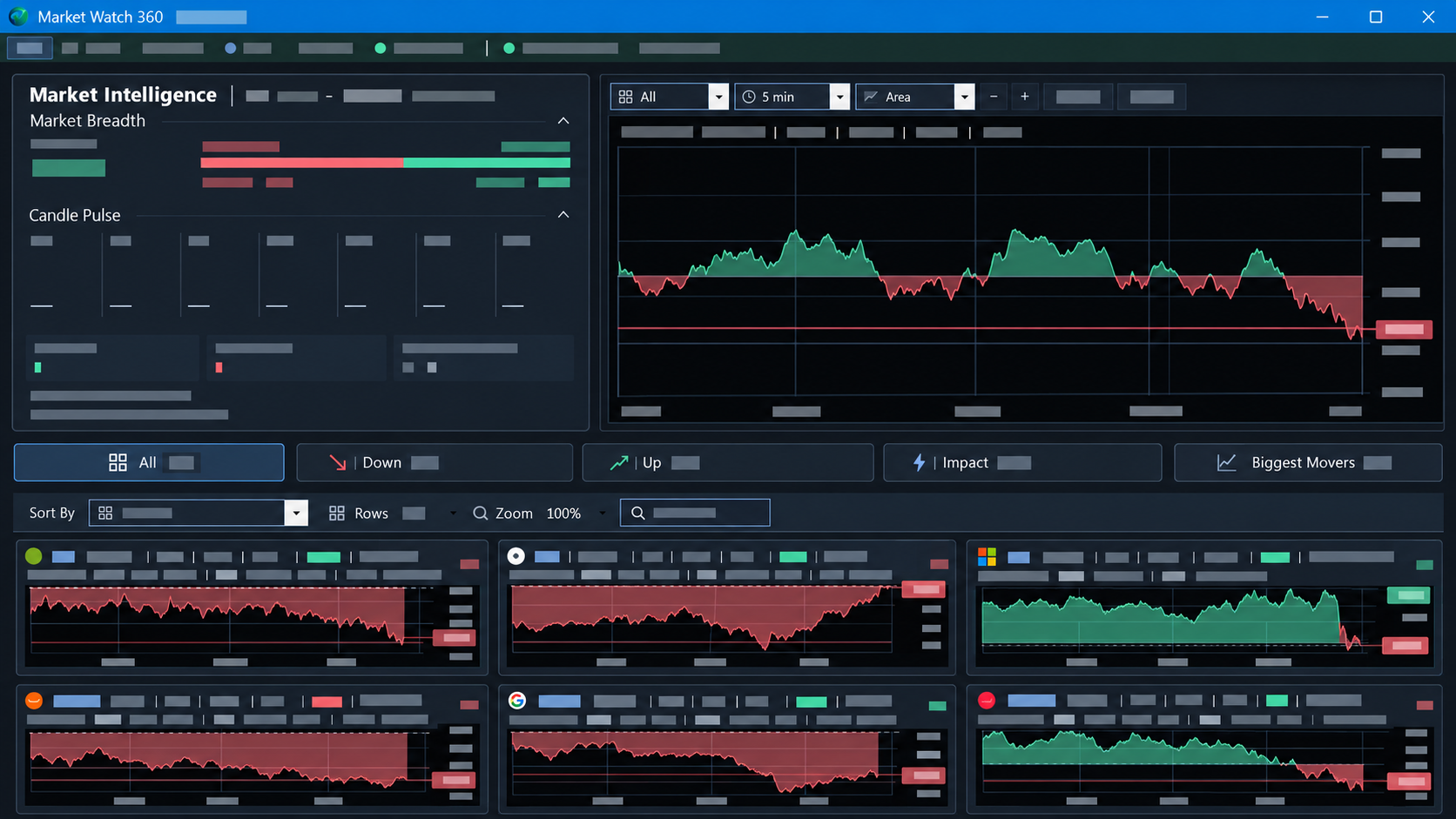
Market Watch 360 is display-only desktop software for seeing what is really moving the market. Breadth, weighted contribution, native charts, and stock cards turn familiar market data into a clearer view as the session develops.

The $0, 14-day trial offer is selected. Activation is not live on this local website.

Why this matters

Information that has been there all along—now you can see it together.

01Can the index rise while more stocks fall than rise? Yes. Weight changes the story.

02Can a stock make a big price move but barely move the index? Yes. Contribution tells you how much it matters.

03Can a small group carry the broader move? See the leaders beside market breadth.

Inside the desktop app

From the broad move to the stock behind it.

Follow the screen from Market Intelligence through the chart and cards. Each view answers a different question about the same market move.

01

Market Breadth

See who is participating in the move.

Compare how many selected stocks are rising or falling with the weighted contribution behind each side. A rising index can tell a different story from the number of stocks going up.

  • Rising versus falling participation
  • Positive and negative weighted contribution
  • A clearer read than counts alone
Cleared Market Watch 360 desktop rendering highlighting Market Breadth
Cleared rendering · Market Intelligence panel
02

Candle Pulse

See how the selected basket moves, minute by minute.

Candle Pulse turns the selected weighted stock basket's estimated Net movement into seven small candles: 1, 3, 5, 10, 15, 30 and 60 minutes. Fixed, the default, groups observations into scheduled intervals. Rolling follows a trailing window ending at the latest available observation. Both use the same basket and feed context, but answer different timing questions.

Each candle uses open and close for its body and observed high and low for its wick. The shared scale makes movement across timeframes comparable; it expands when needed and has a minimum ±5 estimated S&P-point range when point values are available. Rolling can seed from provider minute bars, then incorporates live basket observations. A shorter or partial history is labeled as such. Feed delays remain delays, and these are estimated selected-basket candles, not official S&P 500 index candles. Candle Pulse's mode does not change Trend Matrix 360.

  • Fixed versus trailing Rolling windows
  • Seven timeframes on one proportional scale
  • Partial history and feed timing shown in context
Learn How Candle Pulse Works
Cleared Market Watch 360 desktop rendering highlighting Candle Pulse
Earlier cleared rendering · current Fixed and Rolling controls are not shown
03

Trend Matrix 360

See the directions behind the trend.

Trend Matrix 360 reads moving-average direction on the selected weighted stock basket. Two panels beneath Candle Pulse calculate their own EMA directions from different candle intervals, so a faster panel can disagree with a slower one. Arrows show the direction of each EMA; a colored label summarizes their combination.

The desktop development preview uses EMA 9, 20, 50 and 200 with nine descriptive conditions, including Early Rally, Early Pullback, Cooling and Bounce. A forming candle can change the reading before it closes. These labels describe observed direction, not a forecast or trade instruction. Candle Pulse's Fixed or Rolling choice does not change these calculations.

  • Four EMA speeds: 9, 20, 50 and 200
  • Nine named conditions with readable status colors
  • Two independent, selectable timeframe panels
Learn How Trend Matrix 360 Works
5 min timeframeExample
EARLY RALLY
EMA 9
Up
EMA 20
Up
EMA 50
Down
EMA 200
Down

The two faster averages rise while the slower two still fall.

15 min timeframeExample
EARLY PULLBACK
EMA 9
Down
EMA 20
Down
EMA 50
Up
EMA 200
Up

The two faster averages fall while the slower two still rise.

Directional condition colors9 defined states
LONGAll four risingSHORTAll four fallingPULLBACKEMA 20 and 50 down; 200 upMIXED / NEUTRALOther valid combinationsLONG — COOLINGEMA 9 down; slower three upEARLY PULLBACKFaster two down; slower two upSHORT — BOUNCEEMA 9 up; slower three downEARLY RALLYFaster two up; slower two downCOUNTERTREND RALLYEMA 20 and 50 up; 200 down
04

Weighted Index Chart

Read the index move with its drivers nearby.

The weighted session chart sits beside Market Intelligence, so the broad move and the companies behind it can be read in the same workspace.

  • Intraday weighted move
  • Area and candlestick views
  • Breadth and drivers in context
Learn How S&P 500 Weighting Works
Cleared Market Watch 360 desktop rendering highlighting Weighted Index Chart
Cleared rendering · weighted chart
05

Chart Controls

Work with the chart your way.

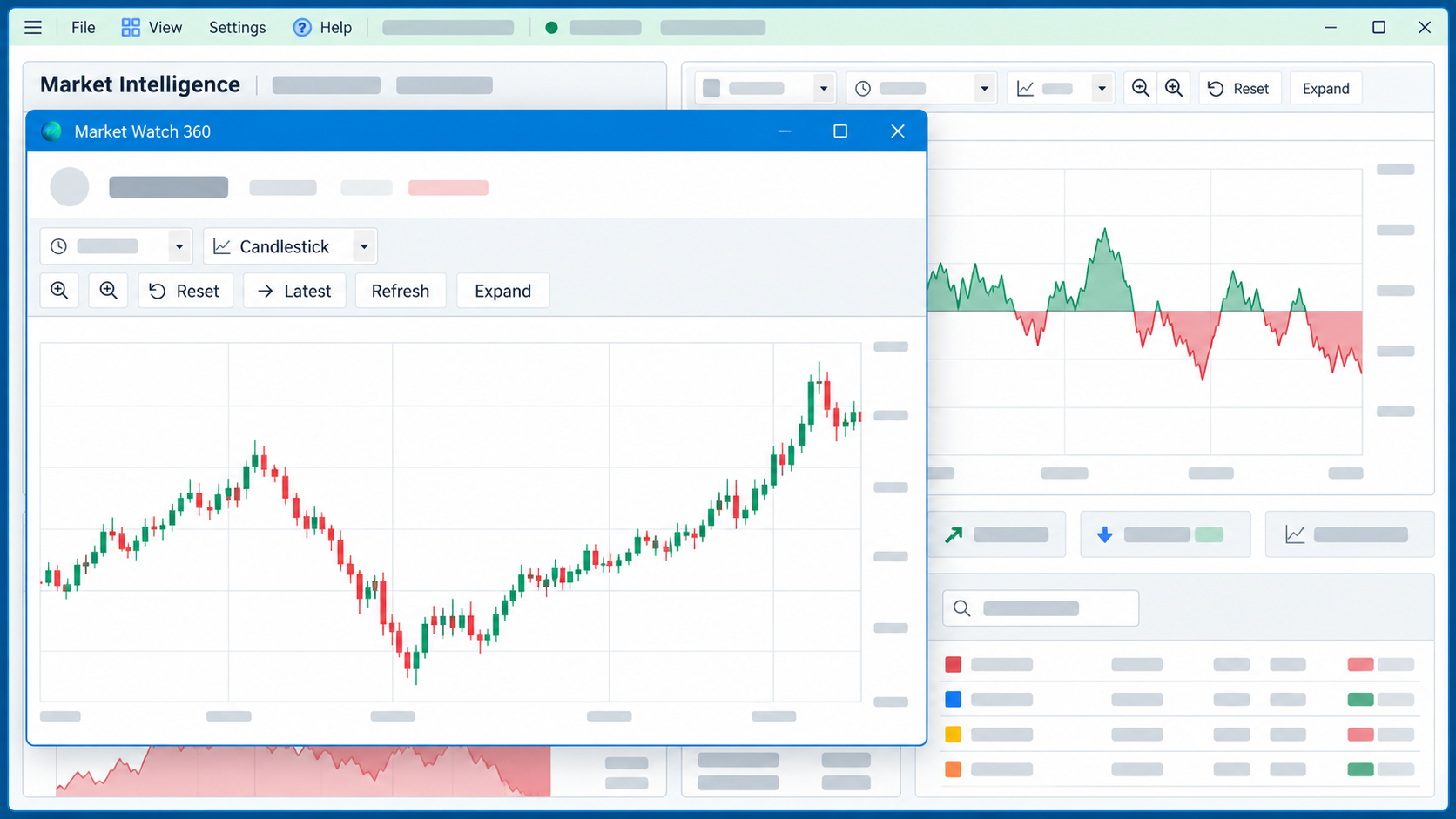
Switch timeframes and chart style, zoom, reset, and expand the view as you follow a market or stock move.

  • Area and candlestick styles
  • Timeframe and zoom controls
  • Reset and expanded views
Cleared Market Watch 360 desktop rendering highlighting Chart Controls
Cleared rendering · native chart controls
06

Dynamic Tab Views

Change the market lens in one click.

Move between All, Down, Up, Impact, and Biggest Movers. Each view brings a different part of the selected basket forward.

  • All, Up, and Down participation
  • Impact by weighted contribution
  • Biggest Movers by price movement
Cleared Market Watch 360 desktop rendering highlighting Dynamic Tab Views
Cleared rendering · market view tabs
07

At-a-Glance Summaries

The first read is already organized.

The view tabs summarize their market slice before you scan the cards. See participation and impact in the same place you choose the next lens.

  • Counts and index context at the tab level
  • A faster route to relevant cards
  • Less hunting through a full grid
Cleared Market Watch 360 desktop rendering highlighting At-a-Glance Summaries
Cleared rendering · view summaries
08

Stock Cards

See the details, stock by stock.

Compact cards bring charts and contribution-aware numbers into one scan-friendly grid. Compare symbols while keeping the larger market view visible.

  • Price, change, and bid/ask when available
  • Index weight and points context
  • Compact charts for side-by-side reading
Cleared Market Watch 360 desktop rendering highlighting Stock Cards
Cleared rendering · stock card grid
09

Pop-out Chart

Go from overview to focused detail.

Open a selected symbol in its own native chart window. The main market workspace stays in place while you look closer.

  • A separate chart for the selected stock
  • Room for focused review
  • The overview remains available
Cleared Market Watch 360 desktop rendering highlighting Pop-out Chart
Cleared rendering · separate native chart
10

Layout Controls

Make the workspace fit your screen.

Choose a basket size and adjust rows, zoom, and card density to match how much information you want in view.

  • 10, 15, 20, 25, or 30 stocks
  • Rows and zoom controls
  • Resizable Windows workspace
Cleared Market Watch 360 desktop rendering highlighting Layout Controls
Cleared rendering · layout controls
11

Three Index Views

One framework. Three different markets.

The desktop development preview has S&P 500, Nasdaq-100, and Dow 30 workspaces. Nasdaq and Dow values remain unavailable without valid market-specific reference data; the three-market preview is not a public release.

  • S&P 500: float-adjusted market-cap weighting
  • Nasdaq-100: modified market-cap weighting
  • Dow 30: price weighting
Learn How These Three Indexes Work
S&P 500IVV-based estimateNasdaq-100References neededDow 30References needed
Three-market development preview · static website illustration
12

Light & Dark Themes

Choose the look that fits your day.

The desktop interface supports light and dark themes, so the same workspace can suit different lighting and working preferences.

  • Light workspace
  • Dark workspace
  • The same market tools in either theme
LIGHTApproved capture pending
DARKApproved capture pending
Theme comparison slot · approved captures pending

Why traders respond to it

A market view that keeps changing with the market.

01

Updated as the session moves

The desktop view changes with data from the customer’s connection.

02

Weighted influence made visible

See which companies carry the move and which ones barely touch it.

03

Context to detail

Start with breadth, then follow a contributor into its own chart.

04

One desktop workflow

Keep the index, market tabs, and stock cards in sight together.

Early feedback

“I never looked at the market that way before.”

Wow. I always looked at how many stocks were up or down. I didn't realize how misleading that could be until I saw the actual weighted impact. That's information worth having.

Ron J. Tucson, AZ

The Impact view got my attention. A stock can make a huge move and barely affect the index, while another stock moves just a little and makes a big difference. I honestly never looked at the market that way before.

Camern W.B. Milwaukee, WI

What impressed me most is that everything changes as the market moves. You're not looking at yesterday's numbers or a static picture. You can actually watch the balance shift throughout the day.

Deniz N. Gilbert, AZ

Where market data lives

Your connection stays in your desktop app.

Customers obtain their own Alpaca accounts and enter API keys locally in Market Watch 360. This website never requests or stores those credentials and does not stream Alpaca market data to visitors.

Market Watch 360 displays and analyzes data. It does not place trades.

Ready to see it yourself?

See what’s been hidden in plain sight.

Request the free 14-day trial. This local preview saves your request but does not email you or start access. The $0 USD, 14-day trial offer is selected. Trial access begins after a license is activated; this local website does not issue trial licenses yet.